
Streaming television requires supported applications and a reliable internet connection. Netflix identifies both as requirements for watching on compatible televisions and streaming players. Before cancelling cable, check whether your existing equipment can deliver the services you want consistently. Start with compatibility and connectivity, then examine sound and software maintenance. These checks provide a practical basis for deciding what needs attention before the switch.
For apartment and condo residents, the Toronto Times guide to Toronto cable alternatives illustrates how streaming devices, home networking, audio equipment, and controls fit together. Use that broader setup as context, then assess your own household. The following six checks focus on what to test before committing to new subscriptions or replacing equipment that may still meet your needs.
1. Confirm Application Support on Your Exact Device
A television’s smart features do not establish compatibility with every streaming service. Netflix lists supported device categories and advises checking the specific manufacturer or model when compatibility is unclear. Its guidance also notes that service may no longer be available on some televisions and streaming devices made before 2015.
Write down the services you intend to use. Check each provider’s supported-device information against your television or streaming player’s exact model number. Open the applications, sign in, and play something. Treat successful playback as a more useful check than finding an application icon.
If an essential service fails, investigate a supported external player before replacing the television. Compare the proposed device against your full list of services. This keeps the decision tied to what you watch.
2. Measure Internet Capacity During Normal Use
Netflix recommends a stable connection of at least 3 Mbps for 720p, 5 Mbps for 1080p, and 15 Mbps for 4K. These recommendations concern its service. Check other providers separately rather than treating one figure as a universal streaming requirement.
Test the connection during your usual viewing hours, with the household using its devices normally. Include an evening when someone is making video calls or downloading files. Record whether playback starts promptly, remains clear, and continues without pauses.
Also review your plan’s data allowance. Netflix provides settings to reduce data consumption where usage limits apply. Before paying for a faster package, compare your measurements with the service’s requirements and investigate whether the problem follows a particular device or location.
3. Check Wi-Fi Coverage Where the Television Sits
Router placement deserves its own check. Google explains that home construction, layout, and equipment positioning affect wireless coverage. Its guidance recommends placing compatible routers in an open, elevated position, preferably near the centre of the home.
Start by testing beside the television rather than beside the router. If playback struggles there, try moving the router into a more open position. Repeat the same programme and compare the result before buying additional networking equipment.
For households considering mesh Wi-Fi, placement still matters. Google advises maintaining a strong connection between mesh points and avoiding positions where objects block the signal. Follow the instructions for your particular system. If you are also considering cellular home internet, reading about how 5G technology affects IPTV streaming quality provides additional context. Assess that option separately from Wi-Fi coverage within your home, and test playback before changing your setup.
4. Verify Whether Ethernet Is an Option
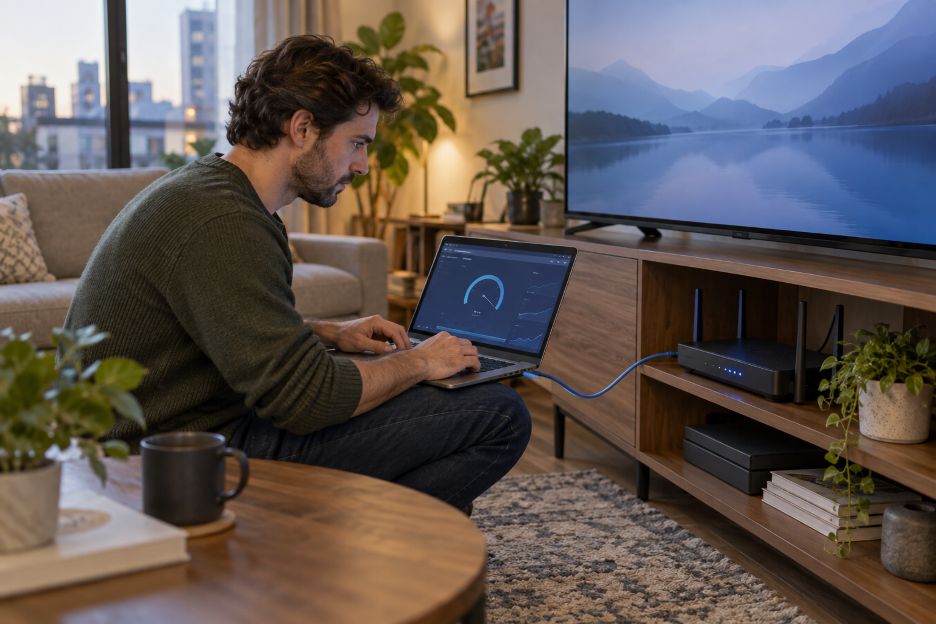
Check the television or player for a supported wired connection. Roku documents both wireless and Ethernet setup, while noting that some players require a compatible USB adapter for Ethernet. Confirm model support before ordering an adapter or planning a permanent cable route.
If the equipment supports it, try a temporary Ethernet connection between the router and streaming device. Select the wired network option and repeat your viewing test. Keep the application, programme, and approximate viewing time consistent so the comparison remains useful.
Record whether the wired test changes the interruptions you observed. Avoid treating one successful session as a complete diagnosis. Repeat the comparison before deciding whether a permanent installation is worthwhile, especially if routing the cable would require changes around the room.
5. Match Audio Connections Before Buying Speakers
Check sound separately from picture quality. Roku explains that connecting a television to a soundbar or receiver depends on the connections and features available on both devices. Its guidance covers optical audio, HDMI ARC, and eARC, including compatibility requirements.
Inspect the labelled ports and consult both manuals. Confirm the intended connection, then test dialogue, volume adjustment, and switching between applications. If you already own speakers, assess them before adding anything new.
Include a quiet evening viewing session in the trial. The Toronto Times guide highlights dialogue settings, adjustable bass, and night modes as considerations for shared buildings. Explore available settings before choosing a larger system. Your assessment should reflect comfortable everyday listening, including the volume you actually use.
6. Review Software Updates and Ongoing Support
Check how your television and player receive updates. Roku states that its streaming devices check automatically and also provide a manual update option. It recommends considering a manual check after a device has been disconnected for an extended period.
Follow your manufacturer’s instructions, install available updates, and test the essential applications again. Before buying replacement hardware, review the manufacturer’s published support information. Include update availability alongside application compatibility in your decision.
Make the Switch After a Practical Trial
Use these checks as a rehearsal for ordinary viewing. Keep notes on application access, connection performance, sound, and controls. Resolve recurring problems before cancelling cable. A tested setup gives you a clearer starting point for internet-based television and a useful baseline when your household’s viewing needs change.